- Open yengsters.com and choose “Create account.”
- Fill out your information, accept the Terms, and choose “Create Account.”
- Sign in using the information you provided.
- Fill out your middle initial, emergency contacts, and upload ID photo of your choice. Please rename your ID as your name e.g. “Jenny Lynne.jpg” before you upload it. See notes below about renaming your photo.
- Make sure all the information is correct then click on “Update Account.”
Once you have completed all the steps above, and sent your payment, we will start working on your ID and contact you with updates.
Note:
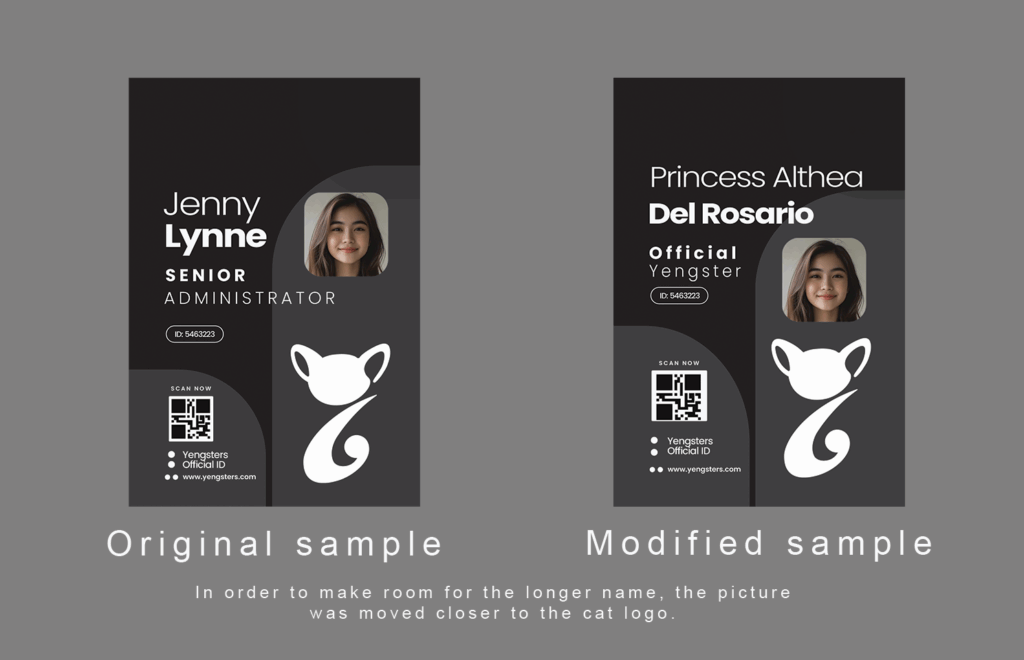
Your ID may slightly differ from the posted samples due to the length of the name provided.
The information you provide here will be the exact same information used on your ID. Once you receive your new ID, please refrain from taking photos of it or posting it on social media. This is to protect you and the people listed as your emergency contacts.
Photo renaming:
iPhone users: Open the photo in the Photos app, tap the Share button, select Save to Files, choose a location, and then tap the existing filename at the bottom of the screen to enter a new name before tapping Save.
Android users: Open your file manager (My Files, Files, etc.), locate your photo (usually under DCIM folder), tap more options (three dots), then choose rename.
If you encounter any issues, please send an email to admin@yengsters.com